
KiCad PCB Design Guide: A Comprehensive Tutorial for Beginners and Professionals
Introduction to KiCad
KiCad has emerged as one of the most powerful open-source electronic design automation (EDA) suites for printed circuit board (PCB) design. Originally developed by Jean-Pierre Charras in 1992, KiCad has grown through community contributions to become a professional-grade tool that competes with commercial alternatives. This comprehensive guide will walk you through the entire PCB design workflow using KiCad, from schematic capture to final manufacturing file generation.
Unlike proprietary EDA tools that often cost thousands of dollars per license, KiCad is completely free and open-source, available under the GNU General Public License (GPL). This makes it particularly attractive for hobbyists, startups, and educational institutions. Despite being free, KiCad doesn’t compromise on features—it supports advanced PCB design capabilities including:
- Schematic capture with hierarchical sheets
- PCB layout with up to 32 copper layers
- 3D viewer with STEP model export
- Design rule checking (DRC)
- Gerber file generation for manufacturing
- SPICE simulation integration
Installation and Setup
Before diving into PCB design, you’ll need to install KiCad on your system. KiCad is cross-platform, available for:
- Windows (7/8/10/11)
- macOS (10.12 or later)
- Various Linux distributions
The installation process is straightforward:
- Download the latest stable version from the official KiCad website (https://www.kicad.org)
- Run the installer, following the on-screen instructions
- Launch KiCad after installation completes
Upon first launch, it’s recommended to configure your preferences:
- Set up your preferred units (millimeters or inches)
- Configure hotkeys for frequently used actions
- Install any necessary library packages
- Set up default text sizes and line widths
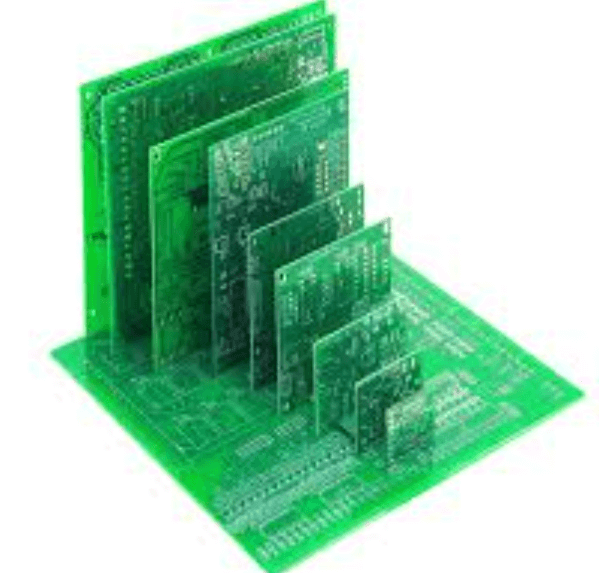
KiCad Workflow Overview
KiCad follows a logical workflow that mirrors professional PCB design processes:
- Schematic Capture: Create the electronic circuit diagram
- Symbol Creation: Design custom components if needed
- Footprint Assignment: Link schematic symbols to physical packages
- PCB Layout: Arrange components and route traces
- Design Rule Checking: Verify manufacturability
- Output Generation: Create files for manufacturing
- 3D Visualization: Inspect the final board in 3D
Schematic Design in KiCad
Creating a New Project
Begin by creating a new project:
- Open KiCad and select “File” → “New” → “Project”
- Choose a directory and name for your project
- KiCad will create several files with your project name (.kicad_pro, .sch, .kicad_pcb, etc.)
Using the Schematic Editor (Eeschema)
The schematic editor (Eeschema) is where you’ll draft your circuit diagram:
- Open your project’s .sch file
- Add components using the “Place symbol” tool (shortcut: A)
- Connect components using the “Place wire” tool (shortcut: W)
- Add power flags and global labels as needed
Component Libraries
KiCad comes with extensive libraries, but you may need to:
- Add additional libraries via “Preferences” → “Manage Symbol Libraries”
- Create custom symbols for unique components
- Verify each symbol has an associated footprint
Electrical Rules Check (ERC)
Before proceeding to PCB layout, run ERC:
- Click the “Run ERC” button
- Address all errors (marked in red)
- Review warnings (marked in yellow)
- Common issues include unconnected pins or missing power flags
PCB Layout in KiCad
Transitioning from Schematic to PCB
Once your schematic is complete:
- Generate a netlist (“Tools” → “Generate Netlist”)
- Open the PCB editor (Pcbnew)
- Import the netlist (“Tools” → “Load Netlist”)
Board Setup
Configure your board parameters:
- Set board size and shape (“File” → “Board Setup”)
- Define layer stackup based on your requirements
- Establish design rules for clearances, track widths, etc.
Component Placement
Effective component placement is crucial:
- Group related components together
- Consider signal flow and thermal management
- Place connectors and mounting holes first
- Use the “Auto-place” tool for initial placement (then refine manually)
- Ensure adequate clearance for assembly and rework
Routing Techniques
KiCad offers multiple routing approaches:
- Manual Routing: Complete control over every trace
- Interactive Router: Semi-automated with push-and-shove capabilities
- Differential Pair Routing: For high-speed signals
- Length Matching: Critical for timing-sensitive signals
Copper Pours and Planes
Add ground/power planes:
- Use the “Add filled zones” tool
- Configure connection style (thermal reliefs)
- Set clearance rules for different net classes
Design Rule Checking (DRC)
Before finalizing your design:
- Run DRC to identify violations
- Common checks include clearance, annular rings, and mask slivers
- Address all errors before generating manufacturing files
Advanced Features
3D Visualization
KiCad’s 3D viewer allows you to:
- Inspect component placement
- Check mechanical clearances
- Export models for enclosure design
Scripting and Automation
KiCad supports Python scripting for:
- Automated repetitive tasks
- Custom design rule checks
- Specialized output generation
Version Control Integration
Manage design revisions using:
- Native Git integration
- Standard file-based version control
- Differential comparison tools
Generating Manufacturing Outputs
When your design is complete:
- Generate Gerber files (“File” → “Plot”)
- Create drill files (“File” → “Fabrication Outputs” → “Drill Files”)
- Generate pick-and-place files for assembly
- Create a Bill of Materials (BOM)
Best Practices for KiCad PCB Design
- Organization: Use hierarchical sheets for complex designs
- Documentation: Add notes and labels liberally
- Reusability: Create custom library parts for frequently used components
- Collaboration: Use standard naming conventions
- Manufacturing Considerations: Adhere to your fab house’s capabilities

Common Pitfalls and Solutions
- Missing Footprints: Always verify symbol-footprint associations
- DRC Errors: Address all violations before manufacturing
- Silkscreen Issues: Ensure text doesn’t overlap pads or vias
- Thermal Problems: Use adequate copper for high-current traces
- Signal Integrity: Properly route high-speed signals
Conclusion
KiCad represents a powerful, professional-grade PCB design solution that’s accessible to everyone. By following this comprehensive guide, you’ll be able to navigate KiCad’s workflow from schematic conception to final manufacturing files. The open-source nature of KiCad means it’s continually improving, with an active community contributing enhancements and support.
Whether you’re a hobbyist working on your first PCB or a professional engineer designing complex multilayer boards, KiCad provides all the tools needed for successful PCB design. Its zero-cost barrier to entry makes it particularly valuable for educational purposes and startups with limited budgets.
As you gain experience with KiCad, you’ll discover more advanced features and techniques that can further streamline your design process. The key to mastery is practice—so start designing, learn from each project, and join the vibrant KiCad community to share knowledge and best practices.