Tips for Specifying PCB Hole Tolerances
One of the more forgotten topics in PCB design is the holes that mount components. Specifying tolerances on hole sizes in PCB manufacturing ensures the proper fit of plated through-hole (PTH) components.
Altium Designer PCB design software can add hole tolerance attributes to your pads and through holes, which will be communicated to the manufacturer through inclusion in the drill table. Here are five tips to help you quickly specify hole sizes in your next PCB design.
Tolerances
Component datasheets list tolerances that are plus/minus to accommodate changes in aging, wear, temperature, plating, materials, processing, etc. For example, a manufacturer’s datasheet for a 1/4 watt resistor specifies a wire diameter of 0.022 ± 0.003. Therefore, the actual diameter can vary from 0.019 to 0.025.
Typically PCB manufacturers specify a hole tolerance of ± 0.004. The wire must always fit snugly in the hole, whether at the large or small end of the tolerance band. Therefore, the minimum hole size must accommodate the largest resistor lead plus tolerance (0.022 resistor lead + 0.003 resistor lead tolerance), plus the 0.004 PCB hole tolerance. Therefore, 0.022+0.003 +0.004=0.029 inches, the minimum hole size allowed in the board.
As holes are drilled, drill bits wear and become smaller. Alternatively, the drill bit may vibrate or wobble slightly in the hole, resulting in a slightly larger hole. The holes are then plated, and the plating can be thicker or thinner for each lot or location on the board. You must also account for thermal expansion or contraction of the PCB substrate as it undergoes processing. Therefore, hole tolerance is critical in the design process to ensure proper placement of PTH parts. A rule of thumb is that you should make PCB holes 0.007 inches larger than the diameter of the part’s leads to accommodate all tolerances, drill wear or wobble, and plating variations. There is no default hole tolerance value in Altium Designer. You can adjust the hole tolerance properties in the pad and properties dialog box. Hole tolerances and default values can also be established in the Pad Via Library panel and the Footprint Library.
5 Tips for Specifying PCB Hole Tolerances
Hole tolerances in Altium Designer can be accessed and edited using several different methods, which we will examine below. In each method, you can set minimum (-) and maximum (+) hole tolerance properties.
Tip 1 – Setting Hole Tolerance Properties for Specific Pads and Vias
You can quickly set pad/via tolerances based on individual properties.
Right-click on a pad or via and select Properties. In the Pad Properties dialog (Figure 1), edit the hole tolerance under Hole Information.
In the Via Properties dialog, edit the hole tolerance under Tolerance in the upper left corner in Figure 2.
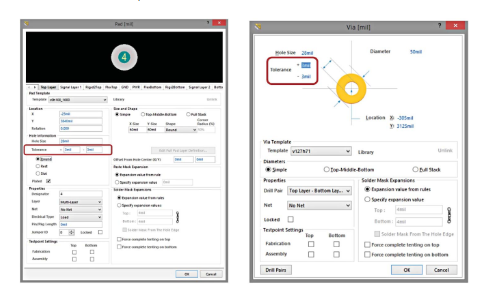
Figure 1 Setting hole tolerances in the Pad Properties dialog box Figure 2 Setting hole tolerances in the Via Properties dialog box
Tip 2 – Use pad or via templates to set hole tolerances
You can also specify hole tolerances using pad or via templates.
Right-click on the Pad Via Library and select Add Via Template or Add Pad Template. Hole tolerances can be set at Hole Information.
Tip 3 Setting hole tolerance properties for multiple pads or vias at once
Conveniently, you can set hole tolerances for multiple pads or vias at the same time.
Open the PCB Inspector panel, as shown in Figure 3. Select the pad or via on the PCB you want to set, and enter the necessary hole tolerance value in the right column under the Object Specific panel.
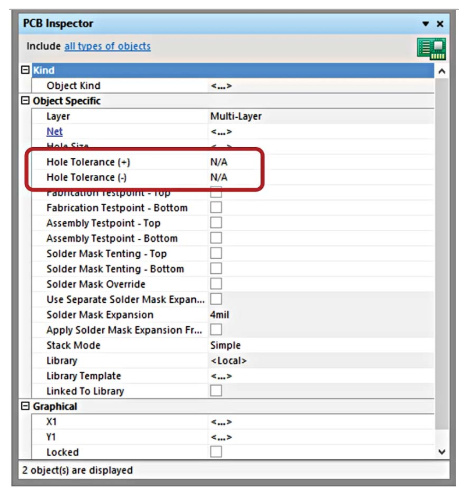
Figure 3 Setting hole tolerances for multiple holes and vias using the PCB Inspector
Hole tolerance columns can also be added and edited from the PCB panel, using the Hole Size Editor. Right-click on Columns > Hole Tolerance (+) and Hole Tolerance (-) under the Unique Holes heading. By clicking on the hole tolerance column, you can change the tolerance properties.
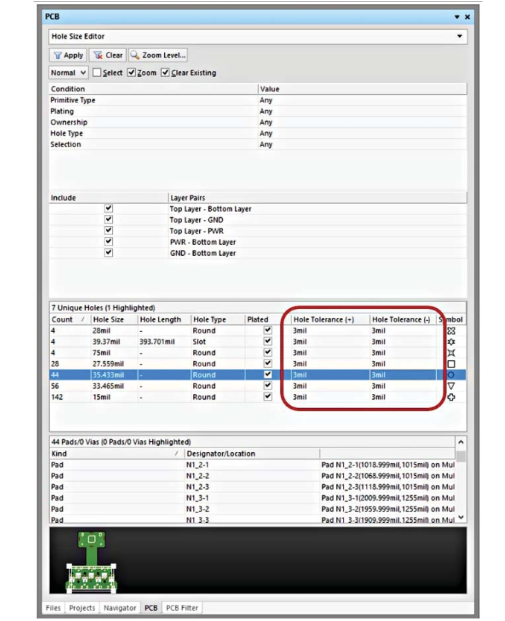
Figure 4 Multiple hole tolerance values can also be added in the PCB dialog box
Tip 4 – Add hole tolerances to Via Stitching/Via Shielding
You can add hole tolerances to multiple stitched vias to save time.
Click Tools > Via Stitching/Shielding > Add Stitching to Net. Add hole tolerance information at Tolerance under the Via Style section.
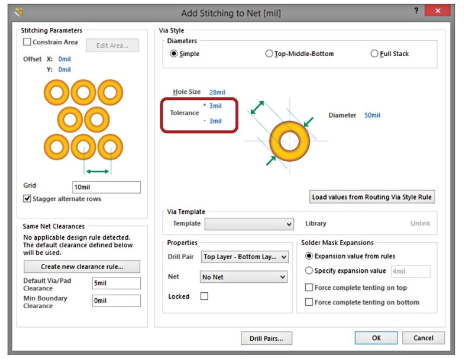
Figure 5 Add hole tolerances for through holes using the Add Stitching to Net panel
Tip 5 – Display hole tolerances in drilled holes
You can view tolerances in a drill table in two ways: one column or two columns to display tolerance properties.
In the Drill Table Properties dialog box, click Add Column. Select Hole Tolerance To view all tolerance properties in one column, select Hole Tolerance. This column will display the minimum and maximum properties. Alternatively, you can choose to display the minimum and maximum set hole tolerance properties in separate columns. For the latter option, select Hole Tolerance (+) and Hole Tolerance (-). Of course, you can also choose to display only the minimum or maximum set hole tolerance.
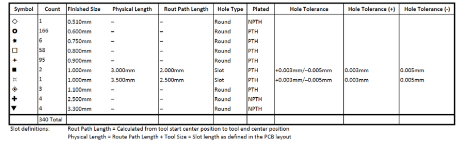
Table 1 Example table showing all hole tolerance columns
You can also group them by hole tolerance. From the Drill Symbols dialog box (click Configure Drill Symbols in the Drill Table dialog box), click Grouping, then select Hole Tolerance.
Note that when adding hole tolerance information to pads and vias, the hole tolerance value will be displayed as an * (asterisk) unless all pads or vias grouped under the Count column have the same hole tolerance properties.
Note: After adding information to the drill table, you must click OK to exit the Drill Table dialog box or your changes will not be saved.
Conclusion
Ensuring proper hole tolerance is critical for PTH components to mount correctly to a PCB. Altium Designer makes it simple to document your hole size tolerances so that your tolerance specifications can be easily communicated to your manufacturer.